> ## Documentation Index
> Fetch the complete documentation index at: https://herd.laravel.com/docs/llms.txt
> Use this file to discover all available pages before exploring further.
# HerdHelper
## The HerdHelper Windows Service isn't working
There are many reasons why Herd can't write to your hosts file, sometimes it's locked by anti virus software or is simply read-only. The HerdHelper tries to mitigate these situations automatically but can also write logs to track down the issue, so if the helper works and the status is green, please check these logs.
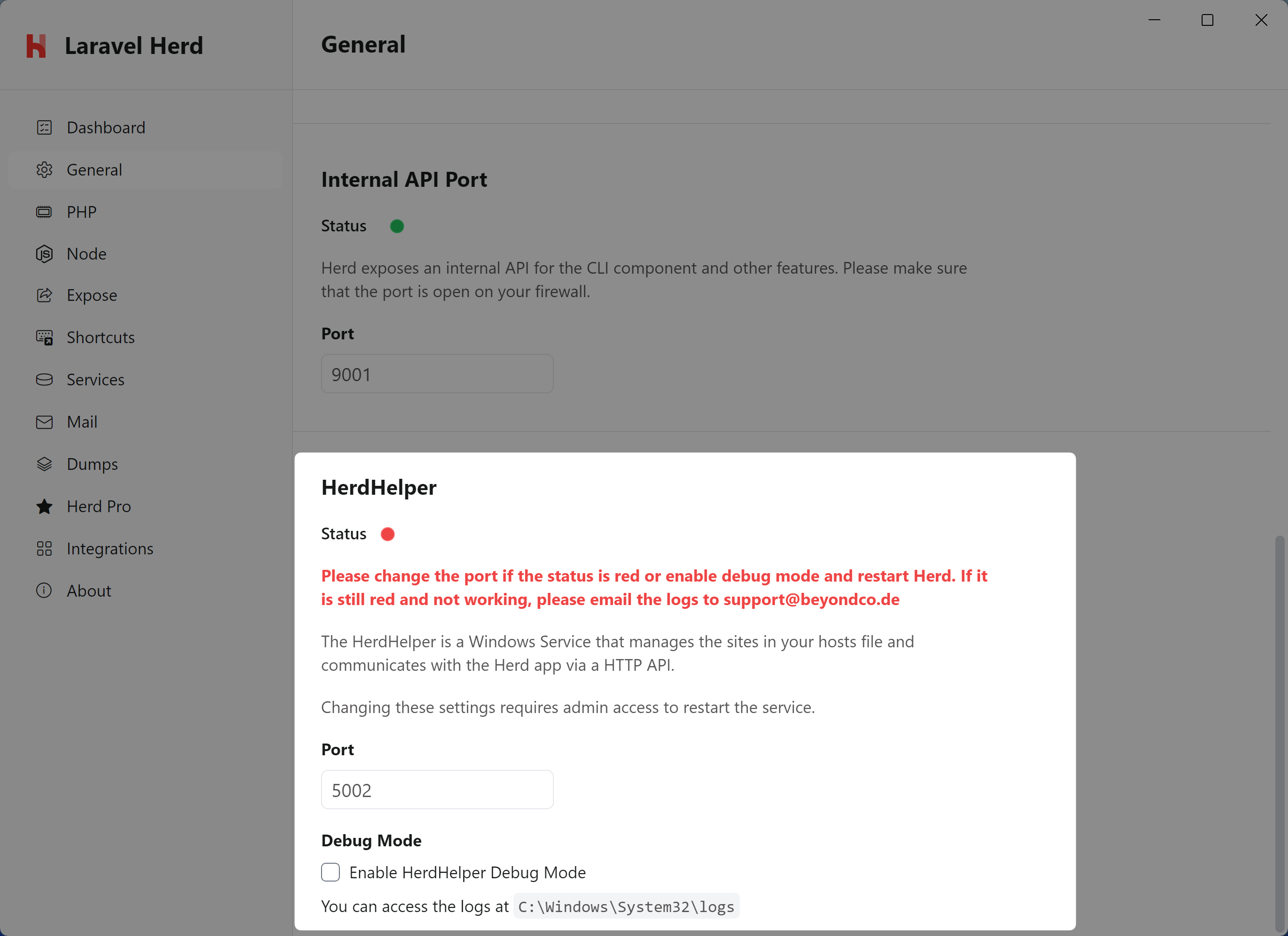 If the helper doesn't start, please try starting it by changing the port or via your Windows Services or even by starting it manually at the following path:
```ps1 theme={null}
C:\Program Files\Herd\HerdHelper.exe
```
Starting it manually reveals a terminal window with logs and should help debugging the issue.
> On Herd versions before 1.29, the binary was located at `%USERPROFILE%\.config\herd\bin\HerdHelper.exe`. The updater removes it from this location and installs it to `C:\Program Files\Herd` instead.
## The HerdHelper service is not installed
If the HerdHelper service is not installed, you can either install it by running the Herd installer again or by installing it manually. At first, you can double-check if the service is installed by running the following command via an elevated PowerShell or Command Prompt:
```ps1 theme={null}
sc.exe query HerdHelper
```
> In some cases, `sc.exe` might not be in your PATH. In that case, you can find it in `C:\Windows\System32\sc.exe`. This also leads to the problem that Herd cannot detect the running HerdHelper while it actually works as expected. Please add the path `C:\Windows\system32` to your PATH variable to mitigate this issue.
If the service is simply stopped, you can start it with the following command:
```ps1 theme={null}
sc.exe start HerdHelper
```
In case, that you need to install it from scratch, you can do so by running the following command via an elevated PowerShell or Command Prompt:
```ps1 theme={null}
sc.exe create HerdHelper binPath= "\"C:\Program Files\Herd\HerdHelper.exe\"" start= auto
```
The escaped inner quotes are required because the path contains a space — without them, Windows registers the service with an unquoted path and fails to start it.
After that, you can start the service with the following command:
```ps1 theme={null}
sc.exe start HerdHelper
```
If the helper doesn't start, please try starting it by changing the port or via your Windows Services or even by starting it manually at the following path:
```ps1 theme={null}
C:\Program Files\Herd\HerdHelper.exe
```
Starting it manually reveals a terminal window with logs and should help debugging the issue.
> On Herd versions before 1.29, the binary was located at `%USERPROFILE%\.config\herd\bin\HerdHelper.exe`. The updater removes it from this location and installs it to `C:\Program Files\Herd` instead.
## The HerdHelper service is not installed
If the HerdHelper service is not installed, you can either install it by running the Herd installer again or by installing it manually. At first, you can double-check if the service is installed by running the following command via an elevated PowerShell or Command Prompt:
```ps1 theme={null}
sc.exe query HerdHelper
```
> In some cases, `sc.exe` might not be in your PATH. In that case, you can find it in `C:\Windows\System32\sc.exe`. This also leads to the problem that Herd cannot detect the running HerdHelper while it actually works as expected. Please add the path `C:\Windows\system32` to your PATH variable to mitigate this issue.
If the service is simply stopped, you can start it with the following command:
```ps1 theme={null}
sc.exe start HerdHelper
```
In case, that you need to install it from scratch, you can do so by running the following command via an elevated PowerShell or Command Prompt:
```ps1 theme={null}
sc.exe create HerdHelper binPath= "\"C:\Program Files\Herd\HerdHelper.exe\"" start= auto
```
The escaped inner quotes are required because the path contains a space — without them, Windows registers the service with an unquoted path and fails to start it.
After that, you can start the service with the following command:
```ps1 theme={null}
sc.exe start HerdHelper
```